 MyMapData
How to Georeference a Map Online and Export GeoJSON
This guide shows how to use MyMapData to upload a scanned map or PDF, align it to a basemap using ground control points (GCPs), digitize features (points, lines, polygons), and export your data for use in QGIS, ArcGIS Pro, or Python.
Contents
Before you start
You’ll get the best results if your map has a few clearly identifiable locations you can match to the real world (intersections, bridges, sharp coastline corners, building corners, survey monuments, etc.).
- Input: PDF or scanned map image.
- Basemap: OpenStreetMap tiles for reference.
- Georeferencing method: Affine transform (recommended for MVP speed and reliability).
Step 1 — Upload your map
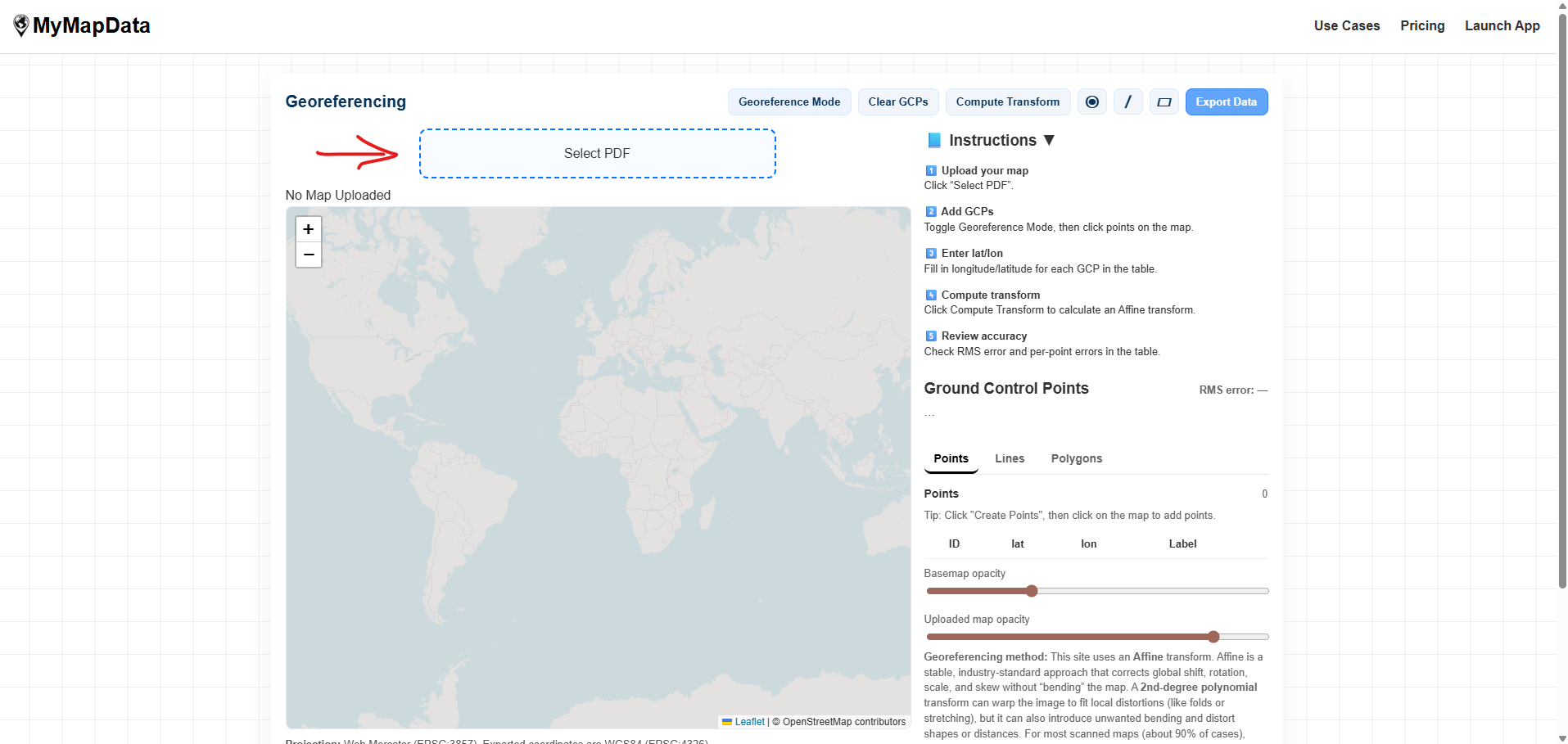
Open the app and upload your PDF or scanned map. After upload, you’ll see the map render on the canvas and the basemap beneath it.
- Go to mymapdata.com/app.html.
- Click the upload button and select your map file.
- If your map is large, give it a moment to render.
Step 2 — Add ground control points (GCPs)
Ground control points connect locations on your scanned map to real-world coordinates. You’ll add a GCP on the map image and enter the corresponding latitude/longitude (for example from Google Maps).
Minimum points
- Affine transform: minimum 3 GCPs (more is usually better).
How to choose good points
- Use crisp, unambiguous features (intersection corners, bridge endpoints, sharp corners).
- Spread points across the entire map (avoid clustering them in one corner).
- Avoid points on vague features (trees, fuzzy shorelines, soft curves).
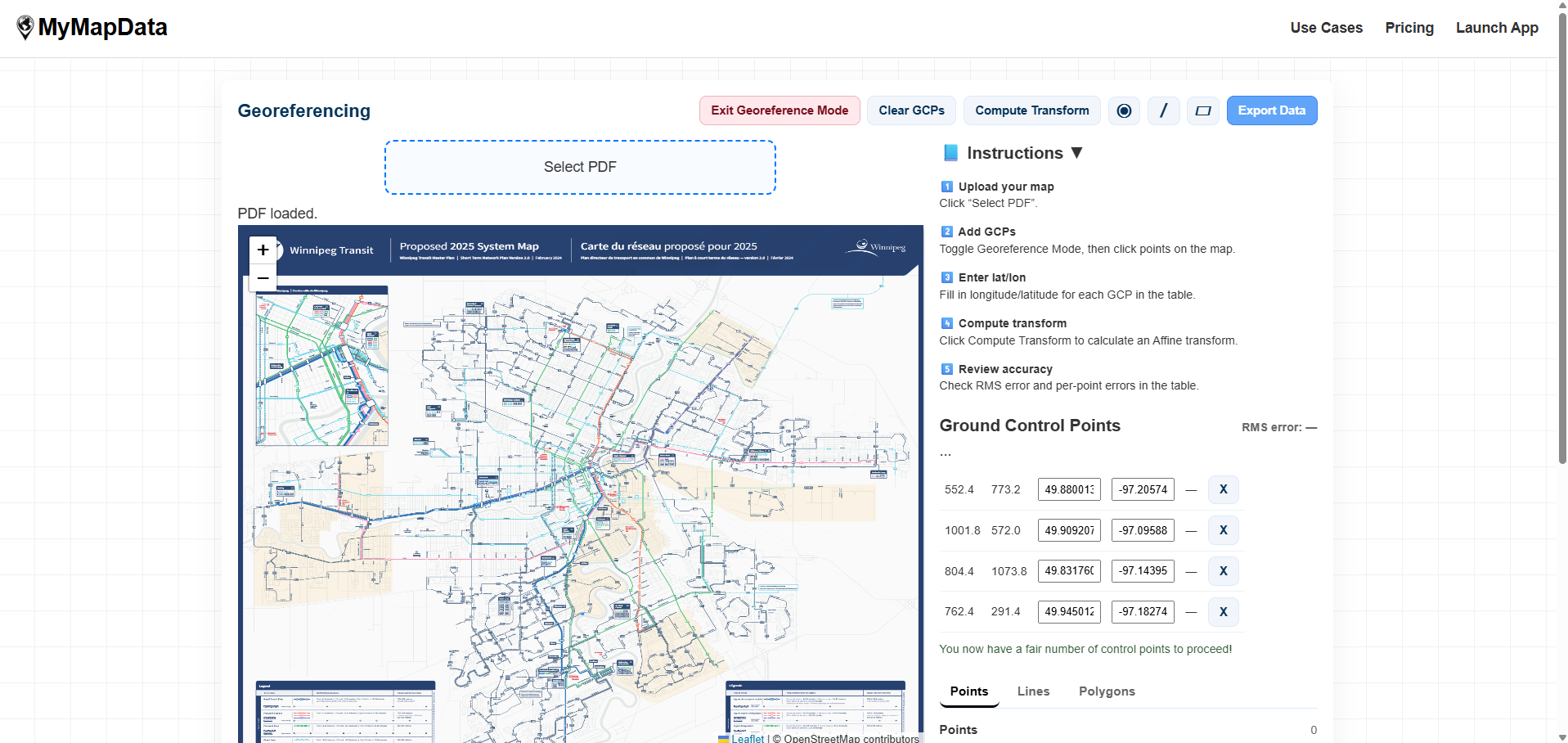
lat, lon. MyMapData accepts latitude first, longitude second (Google Maps-friendly).
Step 3 — Compute the transform and check alignment
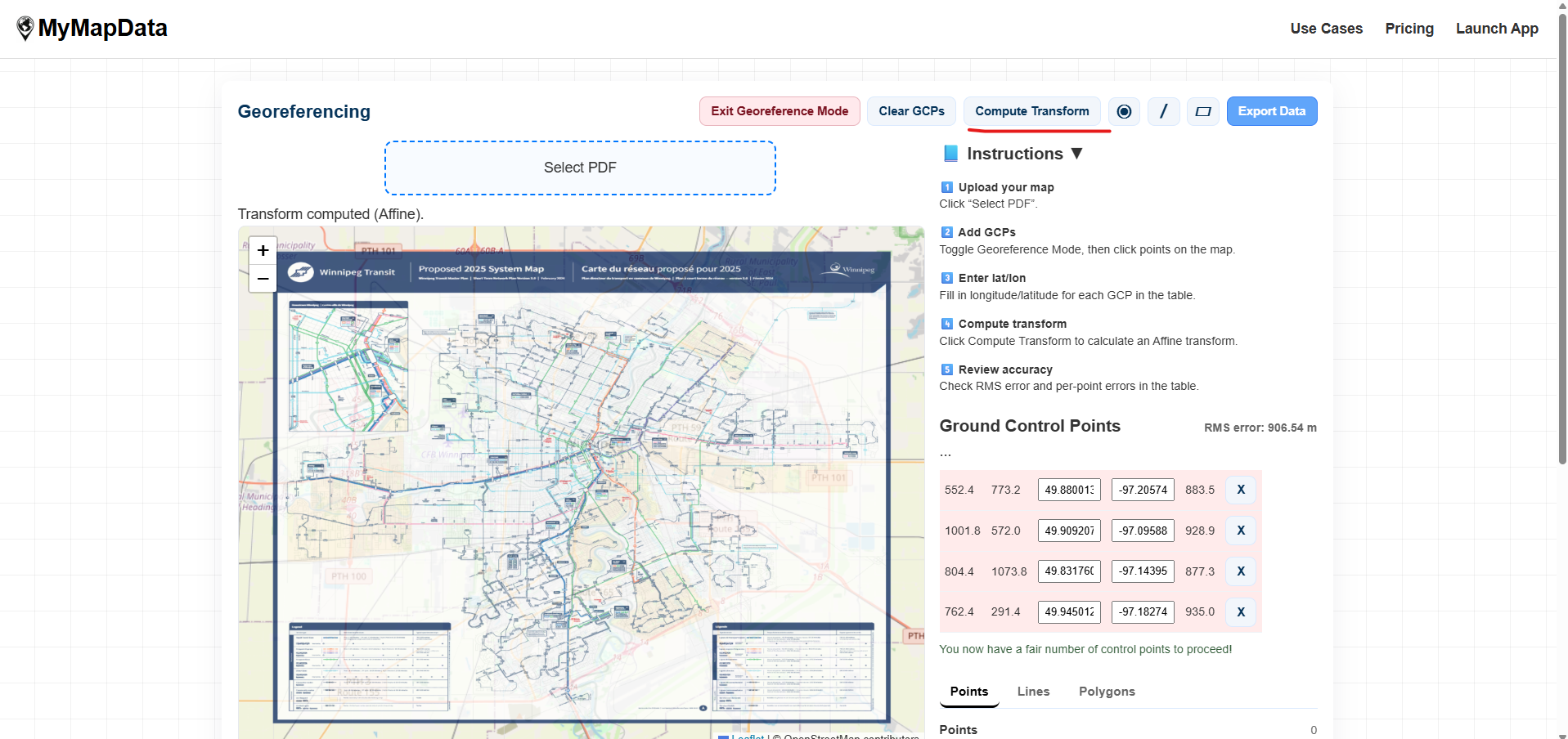
After adding enough GCPs, compute the transform. Your scanned map will be warped into place and overlaid on the basemap. Use opacity controls to check that roads, shorelines, or boundaries line up.
- Click Compute Transform.
- Adjust the map overlay opacity to compare against the basemap.
- If alignment is off, add more GCPs or replace the worst ones.
Step 4 — Digitize points, lines, and polygons
Once your map is aligned, you can digitize features directly on the georeferenced overlay. Use the drawing tools in the top bar. Only one tool is active at a time.
Points (⦿)
- Select the ⦿ tool.
- Click anywhere on the map to add a point.
- Points remain visible even after you exit drawing mode.
Lines (/)
- Select the / tool.
- Click to add vertices along the feature you’re tracing.
- Double-click to finish the line.
Polygons (▱)
Polygons follow the same idea as lines, but close into an area boundary. (If polygons are enabled in your version, select the ▱ tool, click to add vertices, then finish to close the shape.)

Step 5 — Export your data (GeoJSON)
When you’re ready, export your digitized features for use in GIS tools. GeoJSON works well with QGIS, ArcGIS Pro, PostGIS workflows, and Python (GeoPandas).
- Click Export Data.
- If export access is locked, you’ll be prompted to pay to unlock downloads for your session.
- Download the exported file(s) and import them into your GIS workflow.

Tips for better accuracy
- Spread GCPs out: place points near corners and across the map, not clustered in one area.
- Use sharp features: intersections and corners are better than vague shapes.
- Replace outliers: if one control point has high error, remove it and choose a better match nearby.
- Check multiple areas: verify alignment in several locations, not just where you placed points.
- Expect distortion: old scans and folded maps often have local warping that any simple transform can’t fully remove.
FAQ
Why does the map use Web Mercator but exports latitude/longitude?
Web maps (like OpenStreetMap) are rendered in Web Mercator (EPSG:3857) for fast tiled display. GeoJSON exports typically use WGS84 latitude/longitude (EPSG:4326) for compatibility with GIS tools and standard data pipelines.
Can I use MyMapData for property boundaries or legal surveys?
No. MyMapData is not intended for legal, cadastral, or survey-grade work. Exported results should be independently verified for any critical use.
My export downloaded only one file. Is that normal?
Your browser may block multiple downloads by default. If MyMapData exports multiple files (for example GeoJSON + CSV), your browser may ask you to allow additional downloads for this site.
Where can I get help?
Email support at support@mymapdata.com.